By Ivan Kalin · Local SEO Expert & Founder at Clientomic
Published November 10, 2026
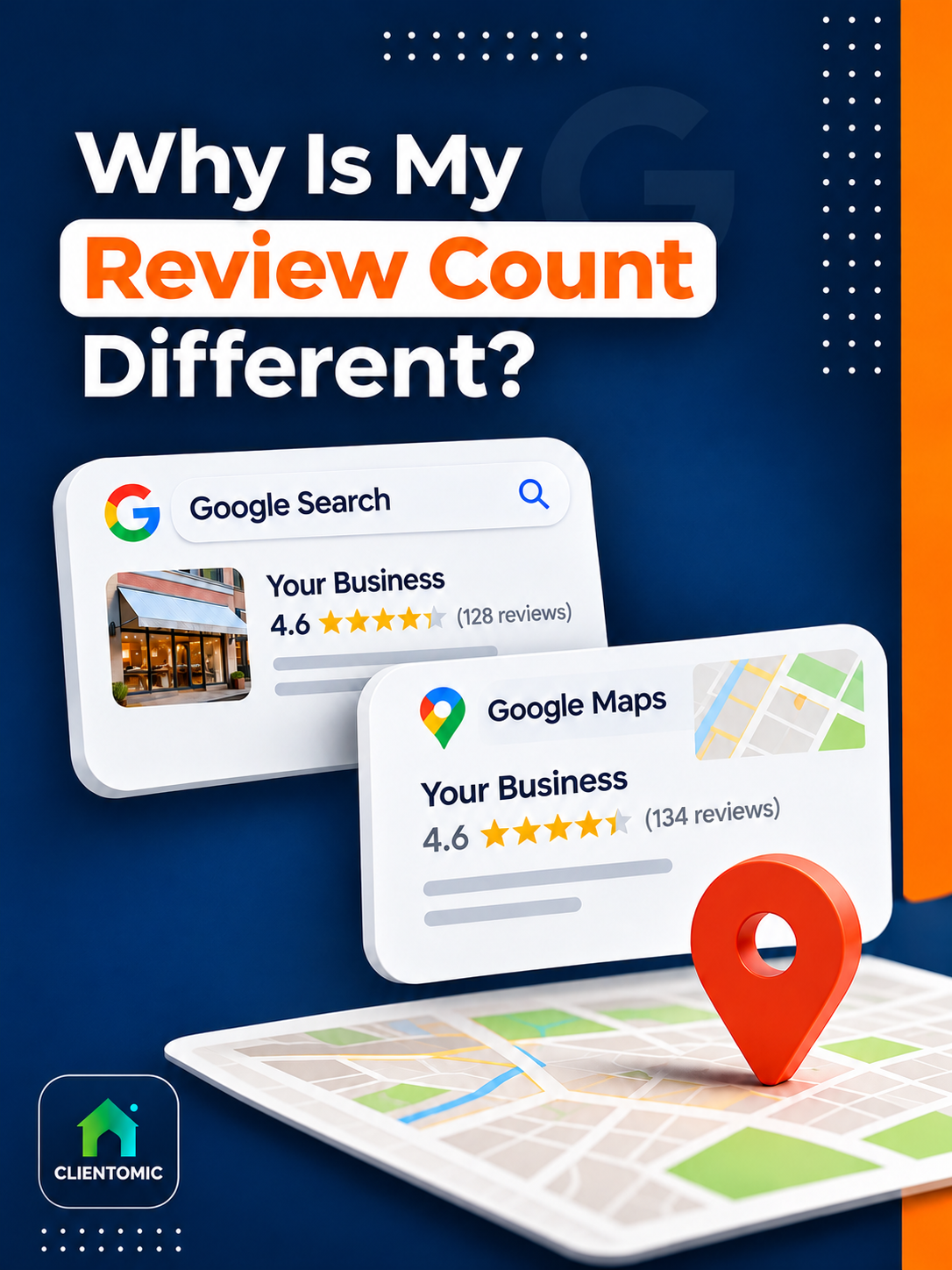
Seeing your Google review count different on Search and Maps can make you wonder whether customer feedback has vanished. A Google review-count mismatch is only an observed disagreement between the totals shown on Search and Maps for a listing. A Google review-count mismatch does not identify which total is correct, explain the difference, or establish that any review was deleted. First confirm that both screens show the same business listing, then compare the visible reviews.
A Google review-count mismatch is an observation to investigate, not proof of a missing review. Compare the same profile, the same review source, and individual reviews before assigning a cause. Google's reviewed guidance gives no universal count-refresh deadline. Its up-to-two-weeks update guidance concerns the average star score, not the review count (Google Business Profile Help, 2026).[4]
By Clientomic · Guidance checked October 15, 2026
Google Business Profile (GBP) is the business listing customers see on Google Search and Maps. An owner can manage that profile on either surface.[6] When the numbers disagree, you need a clear record of what changed before deciding what to do next.
What should an owner do when Google Search and Maps show different review totals? Confirm that both surfaces open the same Business Profile, compare the visible reviews, and record when each check was made. The reviewed Google guidance supplies no general explanation for a Search-versus-Maps review-count mismatch. A missing review is a particular contribution you cannot find, while a mismatch is simply a difference between displayed totals. Displayed-total differences and absent contributions need separate records. Search and Maps should also be compared using the same review source, rather than a Google total against a number labeled with another website's name. Treat a display difference as the question to investigate, rather than evidence of deletion, a restriction, or a particular technical fault. Your next useful step is a controlled comparison of the listing and its visible reviews.
When Search and Maps show conflicting totals, checking a review count becomes a comparison task. An owner with a dated, same-profile record can describe what changed. Repeatedly opening screens without recording details leaves the next check without a reference.
Guessing from headline totals blurs distinct observations: a count, an absent contribution, an average star score, and another website's figure.
The outcome is a small comparison record and next action; incomplete evidence leaves the cause unresolved.
The table organizes evidence; the workflow makes the comparison repeatable. The comparison checks are practical suggestions, not a Google-published diagnostic test. Google's missing-review guidance supports specific situations, not a general cause for every Search/Maps count difference.[1]
| What I see | What to verify | What Google documents | Next step |
|---|---|---|---|
| Different totals beside the same business name | Exact location, profile links, and review-source labels | Owners can manage profiles on Search and Maps.[6] | Record both totals and compare individual reviews. |
| A particular review cannot be found | Reviewer name, date, and available review text or link | Google describes specific missing-review situations.[1] | Document the review separately from the total. |
| A number associated with another website | The source name beside that number | Some profiles show third-party reviews.[3] | Keep that source separate in your notes. |
| A changed star score | Whether you are reading an average rather than a count | Google calculates the score from published ratings.[4] | Label the score and count separately. |
Open the intended listing on both Google surfaces and build one comparison record. Begin with the exact business name and location, then check the visible business details before reading the review totals. Save each profile link and note whether the review list shows the particular contribution you are concerned about. Record the surface and the time of each check so a later comparison has a clear reference point. A screenshot should include enough of the listing to identify the business and the number being compared. This procedure helps describe the symptom accurately; it cannot expose Google's internal processing or establish a cause by itself. If you discover that the screens belong to different locations or listings, resolve that comparison error before treating the totals as a Search-versus-Maps discrepancy.
Work through these steps in order:
Google's review-management guidance also explains how to copy a direct link to an individual review from Maps.[2] Include that link when available rather than relying only on a customer's recollection of posting.
For example, a difference of one between totals does not tell you which review, if any, is absent. Treat that as an illustrative comparison, not a finding about your profile. If you can identify an absent contribution, our guide to Google reviews that disappeared covers that separate problem.
A useful note reads: "Same business and location checked; totals differ; named review visible on Search but not found on Maps at the recorded times." That wording reports what you checked without claiming permanent removal. If profile details also need attention, use our Google Business Profile audit guide for the broader maintenance task.
Google lists several specific circumstances for delayed or missing reviews. Policy checks can sometimes delay appearance for a few days; recently merged profiles may also need a few days for combined reviews to appear on Search and Maps. Older phones or software can affect posting. Google may temporarily restrict user-created content for certain profiles or categories, and policy-removed reviews will not be restored. Google directs owners to support when reviews disappear after reinstatement.[1] These are documented situations to check against your profile's history, not a diagnosis from the totals alone. Write down any relevant event and its date alongside your comparison record. If none fits, preserve that uncertainty when asking for help. A clear account of what you can verify is more useful than choosing a technical explanation without evidence.
Separate your evidence into two short lists:
Keep the comparison record even when you find a plausible match in Google's guidance. A recent event gives support something concrete to investigate; it does not prove why a specific number differs.
If the evidence points to an absent review, Google's review-management tool provides a route to report review removals and check review status.[5] Sign-in is required. Keep the profile details and review information together when using it. The tool's existence is not a promise of restoration or a response deadline.
A practical support summary can use these fields:
Business and location: [details]. Profile links: [Search and Maps]. Checked: [dates and times]. Displayed totals: [each total]. Named review: [reviewer, date, link if available]. Relevant profile history: [verified events]. Request: please investigate the documented difference.
Avoid replacing missing details with an assumed cause. If the only verified fact is that the totals differ, say that plainly. You should not need to learn Google's internal systems to describe what customers can see.
Yes. Google says some Business Profiles on Search and Maps may show reviews originating on other websites. Business type and location influence what appears, and the source can be identified through the third-party name or link.[3] Check that label before comparing numbers. A total associated with an outside website is a separate observation from the total of Google reviews. Do not add the figures together or assume an external source explains your mismatch. Instead, record the label, the displayed number, and which screen contains it. If both numbers you are comparing are clearly Google review totals for the same listing, return to the profile and contribution comparison. The existence of third-party material on some profiles does not establish the cause of a difference on your business's profile.
Keep the source attached to each number in your notes. "Google review total" and "review figure labeled with an outside website" are clearer descriptions than calling both numbers "my reviews." Google's general review-management guidance confirms that trusted non-Google review sources may appear on a profile.[2]
The star score needs its own label, too. Google says a new review score may take up to two weeks to update; that timing concerns the average star score, not the total review count.[4] Google's score-update guidance does not provide a deadline for resolving your Search-versus-Maps count comparison.
When repeating a check later, use the same fields rather than starting a fresh, differently framed comparison. Keep the previous screenshots so the record shows what changed and when. If the numbers now agree, record that observation without claiming to know the underlying reason.
Do not ask for a replacement review just to make two displayed totals agree; the difference does not establish that a particular review was removed. If you request customer feedback, follow Google's Maps user-generated content policy, which prohibits incentivized reviews.[7]
Record a fresh check of the same profile and review. Keep the closure message, case reference, earlier evidence, and current screenshots together when following the support instructions provided. Do not describe the case as resolved solely because it closed. This is a suggested recordkeeping step, not a promise that Google will reopen it.
Treat the reviewer's account view and the public profile as separate pieces of evidence. Ask for the contribution's link and posting details, then document what the public listing shows. The sources reviewed do not establish the cause of that difference. Avoid treating the account view alone as proof that everyone can read the review.
Do not use a desired total as the reason for a profile change. First establish which business and location each listing represents. A difference between two screens of the same profile does not establish that two profiles exist or need merging. If you identify separate listings, review our duplicate Google Business Profile guide before deciding what to do.
Keep one comparison record per location. Pair the Search listing and Maps listing for the same location before comparing totals. Combining numbers from different locations answers a different question. This is a way to organize the check, not a claim that separate locations should have matching review counts.
You can carry out these checks yourself or assign them to the person responsible for your profile. The useful handoff is a record they can act on, with observations clearly separated from assumptions.
Clientomic is a done-for-you local visibility service that manages Google Business Profiles for small service businesses, so owners get found on Search and Maps without handling the monitoring themselves. Our Google Business Profile management service covers recurring profile work, so you can spend less time handling routine maintenance. Google controls its review display and moderation decisions; our service does not promise to change a count or recover a review. Across the profiles we manage at Clientomic, we see how often a simple comparison record resolves confusion that first looked like a missing review.
If keeping the profile maintained is taking time away from running your business, consider getting help with the work involved.
Sources:
1. Google Business Profile Help, guidance on missing or delayed reviews, checked 2026. Read Google's documented review situations
2. Google Business Profile Help, managing customer reviews and getting an individual review link, checked 2026. Read the review-management guidance
3. Google Business Profile Help, third-party reviews on business profiles, checked 2026. Check third-party review sources
4. Google Business Profile Help, review-score calculation and update timing, checked 2026. Understand Google's average review scores
5. Google Business Profile Help, tool to report review removals and check review status, checked 2026. Open Google's review-management tool
6. Google Business Profile Help, owner and manager capabilities on Search and Maps, checked 2026. Check Business Profile management capabilities
7. Google Maps user-generated content policy, on requests and incentives for reviews, checked 2026. Read the user-generated content policy