
By Valerie Mitchell · Client Success Manager, Clientomic
Published October 30, 2026
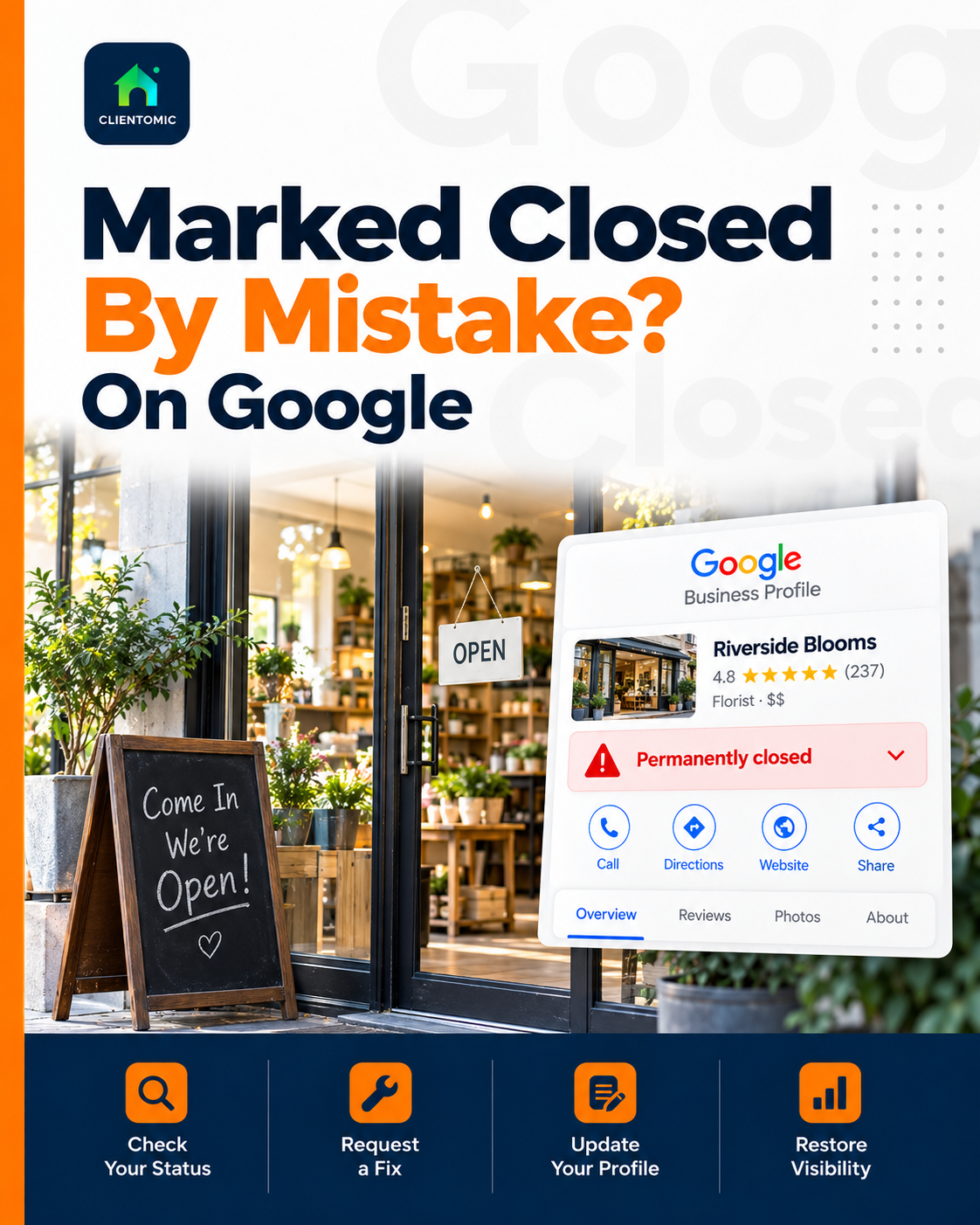
Your doors are open, but Google says your business has closed. A Google Business Profile marked closed by mistake needs a status check. Google Business Profile is the listing you manage for Search and Maps. A closure label describes operating status; an ordinary after-hours "Closed" display describes the schedule.
Quick answer: Confirm the exact label, business address, and account access. For the same operating business at the same location, use Google's owner reopen controls. Ordinary hours showing "Closed" and profile restrictions need different checks. Google directs closures of seven days or less to special hours (Google Business Profile Help, 2026).[1] A move or name change needs separate guidance because Google's relocation instructions conflict.
Google instructions checked October 8, 2026. The year in process-fact attributions identifies the guidance reviewed; Google Help does not display a reliable publication date on these pages.
Temporary and permanent closure are operating-status labels on Google Search and Google Maps. An ordinary "Closed" display can instead reflect the current time being outside the business's listed hours. Google Maps Help distinguishes whether a business is operating from whether the doors are open at a particular moment.[2] Google directs a closure of seven days or less to special hours; longer closures, off-season closures, and indefinite closures can use the temporary-closure status (Google Business Profile Help, 2026).[1] A permanent-closure label can also be mistaken: Google's closure guidance points affected businesses to reopening instructions.[1] A suspension or disabled profile is a separate restriction, requiring a different workflow. Read the full wording before changing anything. Correcting the wrong state will leave the owner's actual problem unresolved.
| What you see | What to check next |
|---|---|
| "Closed" outside regular hours | Compare the current time with the listed schedule.[2] |
| "Temporarily closed" | Check whether the business is actually paused or the operating status is inaccurate.[1] |
| "Permanently closed" | Confirm business identity and location before using reopening guidance.[1][3] |
| An explicit suspension or disabled-profile notice | Follow the applicable restriction process.[6] |
Customers deciding whether to call or visit need accurate information. Avoid describing every after-hours "Closed" display as a closure error. The task is to match the listing to real operations, rather than select whichever label seems more appealing.
Google can update Business Profile information using several sources, including user reports and licensed content.[4] Google's broader information-source guidance also lists public web content, contributions from users and business owners, and Google's interactions with businesses.[5] These documented sources explain how profile information can change; the sources do not establish the cause of an individual closure label. An owner should inspect profile updates and notifications before accusing a person or data provider. A public status, an owner-visible edit, and a notification are different pieces of information. Compare the available records and identify what is confirmed. A label with no supporting history leaves the cause unknown. The practical next step is to establish the current profile state and choose the appropriate correction path, even when the original cause remains unresolved.
Google's update guidance says changed information appears in blue in the profile editor, while black or white text indicates no Google update. A notification can appear at the top when the profile has Google updates; not every Google update can be managed through the profile.[4]
Write down the field that changed and the notification wording. Treat an old website notice as something worth checking, rather than proof that Google used that notice. Google's documentation describes possible information sources without exposing a complete explanation for every individual change.[5]
If a proposed correction has not appeared publicly, use the separate guide to pending Google Business Profile edits to understand that workflow.
When Google marks an operating business as closed, confirm the listing and account before selecting a remedy. Start with the business name, street address or service area, and exact public wording. Google Search is the search-results surface; Google Maps is the map-based surface where customers find places and directions. Compare those public displays with the Business Profile you manage. Then check whether the signed-in account can edit the correct listing, whether Google shows an update notification, and whether the business recently moved or changed identity. An accurate diagnosis describes the state you can observe without guessing its cause. Keep a same-business, same-location closure correction separate from lost access, a restricted profile, and records belonging to an old location. Select the next action only after that distinction is clear.
Use this short record before making an edit:
This record is a practical troubleshooting aid, not a Google-mandated evidence package. If another account owns the verified listing, Google's duplicate-and-ownership guidance describes requesting access.[7]
Use the owner reopen workflow when the same business is genuinely operating at the same location and you control the profile. Google's current instructions place the opening-status controls within Edit profile and Hours. Choose the appropriate open setting, restore accurate opening days and times where relevant, and save. Google says reopening removes the temporary or permanent closure marking from Search and Maps.[3] Google's reopen page separately warns against reopening a profile permanently closed as part of a location or name change. That exception matters: an incorrect label on an unchanged business is different from a listing for a former location or business identity. Check the scenario before following these steps. The owner reopen workflow addresses operating status; the workflow does not establish why the status changed or remove a restriction.
For the unchanged-business scenario, Google's owner procedure is:[3]
Do not mark a business as open around the clock simply to remove a label: the listing should describe how customers can actually use the business.
After saving, record the submitted status and compare the correct public listing. The help page describes the closure-label change, not a guaranteed completion deadline or a forecast of calls or rankings.[3]
Inspect Google updates and notifications even when the owner did not submit a closure change. Google may notify owners about certain suggested edits before publication. When a suggestion requires owner review, the notified owner has four days to accept or reject the suggestion (Google Business Profile Help, 2026).[4] That conditional response window is not a universal delay for every edit or a correction deadline. Google can apply some policy-related user edits without prior review.[4] A person familiar with the business can separately suggest reopening through Google Maps. Google reviews Maps suggestions and says changes can take time to appear.[2] Public feedback and owner editing are distinct routes. Neither route proves who caused the original closure label, and neither should be presented as guaranteed approval.
For the public Maps route, Google's instructions are to find the affected place, choose Suggest an edit, select Operating status changed, then choose Reopen and submit.[2] Keep the suggestion factual and tied to the business's real operating status.
Use the owner correction route when you have access and the unchanged-business scenario fits. Public Maps feedback is not a substitute for regaining ownership or resolving a restriction.
For notifications, check the account that actually manages the profile. Google may publish an unanswered review-required suggestion after the four-day window when other public information supports the change.[4]
A closure label alone does not establish that a Business Profile is suspended or disabled. Suspension and disabling are profile restrictions handled through Google's applicable appeals or reinstatement process. If the owner sees an explicit restriction, follow that branch rather than repeating opening-status edits. Google's appeal guidance distinguishes profile suspensions from rejected information edits and gives different routes by region.[6] For a US business, the current table directs suspension appeals to the appeals tool and rejected-profile-edit appeals to Contact us.[6] Missing access also deserves its own check: an account without ownership may lack editing controls without having a restricted profile. Describe the actual notice and the affected account. An ordinary reopening action cannot be treated as a cure for every situation where the listing looks wrong.
Prepare documents before submitting an appeal when the relevant procedure allows optional evidence. Google requires that evidence within 60 minutes of submitting the appeal (Google Business Profile Help, 2026).[6] This process deadline applies to the appeal evidence form, not the time allowed to correct an ordinary closure label.
Google also says appeal reviews and decisions can take up to five business days, advises against duplicate appeals before a decision, and says not to create another profile for the same business during review.[6] Those instructions do not promise reinstatement or a five-day closure correction.
Use the Google Business Profile suspension guide when the confirmed problem is a restriction.
Google's official relocation instructions conflict, so this article cannot give every moved business one profile-editing rule. The reopen help page says a profile permanently closed because of a location or name change should not be reopened and points to adding a new business.[3] The duplicate-profile help page tells relocating businesses to update the existing address rather than create another profile.[7] Google's policy overview instead says to close the existing profile permanently and create a profile at the new location.[8] These are different instructions in current official documentation. Identify the old and new locations, business identity, and existing records, then ask Google support which guidance applies before creating, closing, or reopening profiles. A mistaken same-location closure does not settle the relocation question.
Present the conflict in a support request with the relevant page titles and the facts of your move. Do not assume a tutorial can resolve a disagreement within Google's own documentation.
Name changes have additional criteria. Google's representation guidelines distinguish qualifying minor rebranding from changes treated as a new business.[9] Check those criteria when the business name changed; a new display name does not automatically establish which branch applies.
A duplicate record is another separate issue. Use the duplicate Google Business Profiles guide for that branch. Avoid using a second listing as a quick replacement for an unresolved first listing.
Confirm that the intended correction was saved to the correct profile, then compare the public listing with the owner-visible state. Review any update notification or explicit restriction notice. Google reviews public Maps suggestions and does not give a fixed publication window in the cited instructions.[2] If owner controls are unavailable or the public and managed states remain inconsistent, use the relevant Google Help page's Contact us route. Describe the business, listing URL, label, submitted change, and visible messages. Keep ownership, rejected edits, restrictions, duplicates, and relocation questions separate. A clear support request gives the reviewer the actual problem rather than a guessed explanation. Avoid repeated status toggling or coordinated user suggestions. The next useful action is a documented correction or the appropriate escalation, not another unexplained change.
| Confirmed situation | Appropriate next route |
|---|---|
| Same operating business and location; owner can edit | Owner reopen instructions.[3] |
| Public Maps correction submitted | Google's suggestion-review process.[2] |
| Explicit restriction or rejected business-information edit | Region-appropriate appeals or support instructions.[6] |
| Duplicate, move, or identity change | Scenario-specific guidance and support; preserve the relocation conflict.[7][8][9] |
Keep a short change record so the next person reviewing the issue can distinguish the original display from your correction. You should not need to learn every profile workflow while running your business.
Yes. Google's duplicate-profile guidance allows separate profiles for distinct, eligible businesses with different names and clearly distinguishable signage.[7] A shared address does not automatically mean the records represent the same business. If Google incorrectly merged two businesses, use the duplicate-status support route.
Google's representation guidelines say certain businesses with varied hours, including appointment-only businesses, should not provide regular hours.[9] Choose the schedule representation that matches the business. The owner reopen page includes an option to open without displayed main hours.[3]
Google documents bulk reopening through Business Profile Manager: select the affected locations, use the opening action, and confirm the selected locations as open.[3] Check each business's real situation before selecting the records. A bulk status edit does not remove restrictions or resolve the relocation conflict.
Google says merged profiles combine their reviews, but replies to reviews may be lost.[7] A merge request is subject to review and requires records representing the same business. Preserve the distinction between two duplicate records and two genuinely separate businesses.
Check that your website accurately states the current address, opening arrangements, and contact details. Remove obsolete closure notices if the business is operating. Google lists public web information as a possible source for profile data.[5] An accurate website supports customers directly; a website edit does not guarantee Google will approve a profile correction.
Clientomic is a done-for-you local visibility service that manages Google Business Profiles for small service businesses, so owners get found on Search and Maps without having to handle the correction workflows themselves. When a business comes to us with a mismatched status, at Clientomic we check the public listing against the owner-visible state before touching anything. If you want ongoing profile oversight while you run the business, read what Google Business Profile management includes and talk through the scope. Google's correction and appeal decisions remain with Google.
Sources:
1. Google Business Profile Help, closure-status definitions and seven-day special-hours threshold, accessed October 8, 2026. Closure guidance
2. Google Maps Help, operating-status feedback and review of public suggestions, accessed October 8, 2026. Maps closure and reopening guidance
3. Google Business Profile Help, owner and bulk reopening controls and location/name-change exception, accessed October 8, 2026. Owner reopening instructions
4. Google Business Profile Help, Google updates and conditional four-day suggested-edit response window, accessed October 8, 2026. Profile update instructions
5. Google Business Profile Help, sources of business information in profiles and local results, accessed October 8, 2026. Business information sources
6. Google Business Profile Help, regional appeal routes and optional evidence submission deadline, accessed October 8, 2026. Appeals and restrictions
7. Google Business Profile Help, duplicate profiles, ownership response period, merging, and relocation instructions, accessed October 8, 2026. Duplicate and ownership guidance
8. Google Business Profile Help, policy overview and relocation instructions, accessed October 8, 2026. Business Profile policy overview
9. Google Business Profile Help, accurate representation, appointment-only hours, and rebranding criteria, accessed October 8, 2026. Business representation guidelines


.png)