By Valerie Mitchell · Client Success Manager, Clientomic
Published August 8, 2026
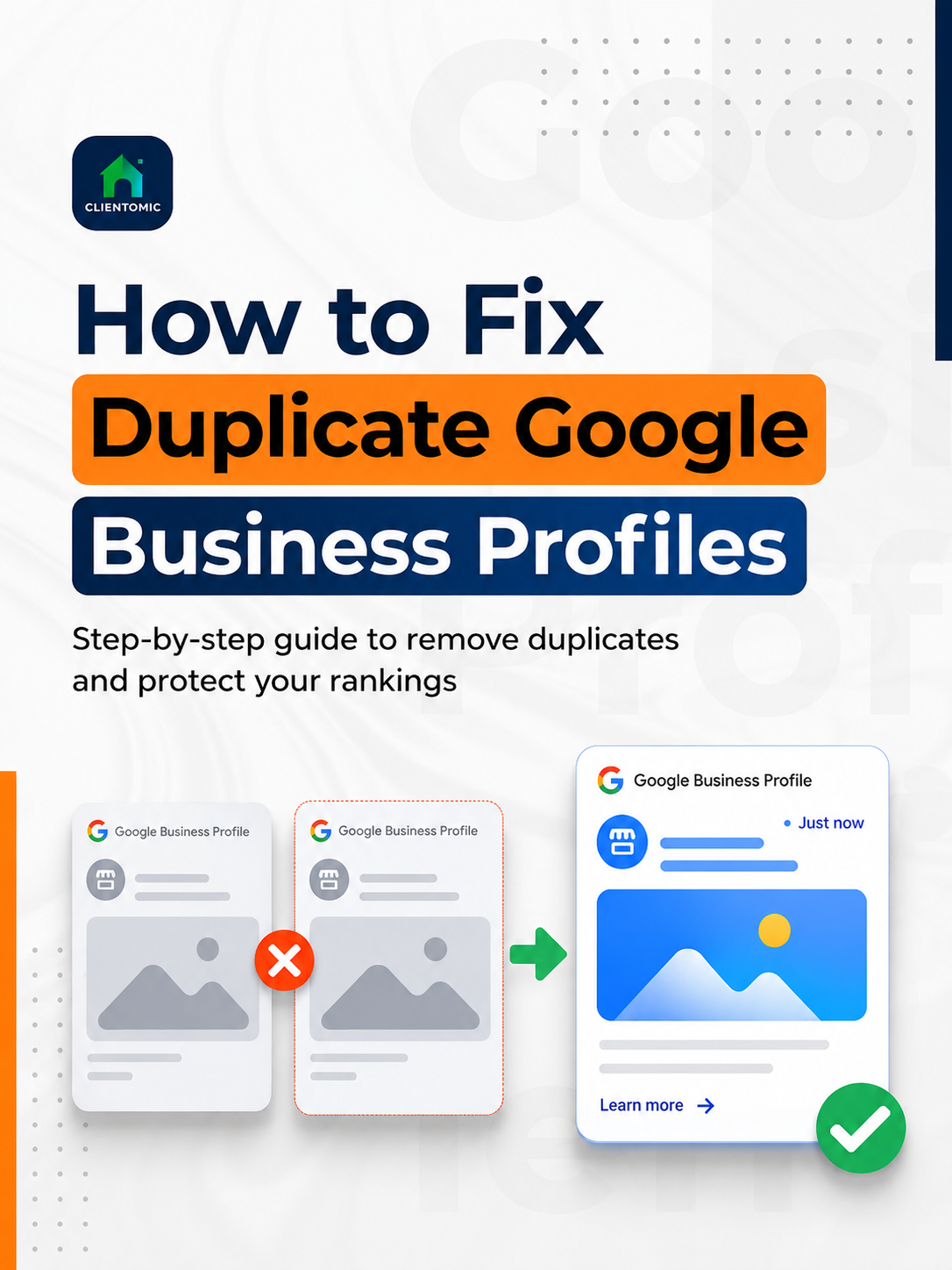
Google Business Profile (GBP) is the business-managed presence that appears across Google Search and Google Maps. To fix duplicate Google Business Profiles, first identify the one profile that correctly represents your business. Compare ownership and business details before you request a merge, remove a listing, or create anything new. Google reviews each request and controls the outcome.
Last checked: August 2026.
A duplicate Google Business Profile is not simply a second listing at the same address; it is an extra profile representing the same eligible business. Compare the business name, address or service-area setup, phone, website, primary category, ownership, and information visible to customers. If those facts describe one real-world business, you may have a duplicate. If the profiles represent distinct eligible businesses with separate names and visible signage, Google can allow both at one address. Start by saving both profile URLs and taking notes on the differences. Do not treat a shared address, similar name, or overlapping service as proof by itself. When the evidence is unclear, pause before suggesting an edit or removing access. The correct first task is identity checking before any action, because every later action depends on whether Google is looking at one business or two.
Google's policy allows 1 Business Profile for each business, and a profile marked as a duplicate may stop showing on Search or Maps (Google, 2026).[1] That rule defines the issue; it does not measure how often duplicates happen.
| What you find | Likely classification | Safest next action |
|---|---|---|
| Same name, contact details, location or service area, and business identity | Same-business duplicate | Identify the canonical profile, then choose ownership, merge, or removal |
| Different eligible businesses with distinct names and permanent signage | Separate profiles | Preserve both and appeal an incorrect duplicate label |
| Mixed details, disputed access, or unclear real-world identity | Uncertain | Document both profiles and resolve identity before editing either one |
A canonical profile is the single, accurate, current profile the business has selected and verified as its customer-facing source of truth.
Keep the profile that accurately represents the current eligible business, has business-controlled ownership or a clear ownership path, and carries the details customers should rely on today. Record both profile URLs, verification states, and ownership roles before changing anything. Compare the real business name, current address or service area, phone, website, hours, category, services, photos, and review history. Review count alone is not a safe deciding rule: an older profile may have more reviews but the wrong location or inaccessible ownership. Likewise, a verified badge does not make inaccurate information correct. The canonical profile should match the real business and remain controlled by the business owner. If ownership is disputed, resolve access before attempting a merge or removal. This checkpoint protects the profile you need and makes the later request easier to explain to Google.
Use this short record before you act:
Do not remove or merge either profile until the canonical profile is confirmed. Google says removal deletes the removed profile's content and linked managers. A merge can combine reviews, but replies to those reviews may be lost (Google, 2026).[1]
Across the GBP ownership cases we review, an unavailable original verifier—often a former employee or previous provider—can turn duplicate cleanup into an access problem before it becomes a merge problem. Treat ownership as a separate workstream, not a detail to fix after deletion.
Choose the least-destructive branch that matches the ownership and identity facts. Submit an ownership request when the correct profile is controlled by someone else. Request a merge when both profiles represent the same business and their information agrees. Remove only a confirmed accidental duplicate that your business controls. Use Google's appeal path when distinct businesses were wrongly merged or marked as duplicates. Google's current guidance gives the existing owner 3 days to respond to an ownership request (Google, 2026), but that is not a promised resolution time.[1] Merge requests are reviewed. Google says reviews combine while review replies may be lost. No provider can turn these requests into instant commands, so preserve evidence and avoid creating a replacement profile while a case is open.
| Situation | Safest next action | Irreversible risk | Official path |
|---|---|---|---|
| Correct profile is owned elsewhere | Request ownership | A new listing adds another duplicate | Google Help[1] |
| Both profiles represent the same business | Request a merge | Review replies may be lost | Google Maps[2] |
| You created the confirmed extra profile | Remove only that profile | Content and managers are deleted | Google Help[1] |
| Distinct businesses were combined | Appeal with eligibility evidence | Wrong removal can erase access | Google Help[1] |
Preserve the canonical profile and align only true details. Submit a merge request—a request for Google to review and combine same-business profiles—through Suggest an edit → Place closed or not here → Duplicate of another place in Google Maps (Google, 2026).[2]
Submit an ownership request, which asks for control of a profile owned by another account. Do not create a third listing. In our audit work, we sometimes find that a claim flow adds manager access without transferring primary ownership, so confirm the role received.
Remove it only after matching its URL against your saved record. Google says removal deletes that profile's content and linked managers; it does not transfer reviews.[1]
Appeal through Google support with concise evidence that the businesses are distinct. Repeated edits do not replace a clear eligibility case.
Two distinct, eligible businesses may each have a Google Business Profile at the same address when their real-world identities are clear. Google points to different customer-facing names and visible differences in permanent signage as evidence for co-located businesses. If Google merged the profiles or marked one as a duplicate, appeal the status and prepare a concise record showing how each business serves customers and qualifies separately. Do not assume that every department, practitioner, rebrand, or business using a shared workspace automatically qualifies for another profile. Eligibility still applies to each entity, and Google decides the case. Keep the appeal focused on the profile facts, the real-world business, and the supporting evidence. A folder full of unrelated files is less useful than a consistent explanation that connects the name, location, signage, contact details, and customer experience.
Build the appeal record around the decision Google must make:
Duplicate status is different from suspension. A duplicate label says Google believes another profile represents the same business; suspension concerns profile eligibility or policy compliance. If a duplicate causes a profile to disappear from Maps, use the narrow Google Maps visibility troubleshooting guide for context, but keep the appeal centered on identity and eligibility.
A move normally calls for updating the existing Google Business Profile, not creating a new one. Multiple services normally belong in the existing profile's services section rather than in separate profiles for the same business. If a second listing already exists after a relocation, compare the old and new profiles, preserve the canonical one, and use the appropriate moved-place or duplicate route only after confirming the facts. If the extra profile was created for a new service, move the accurate service information into the canonical profile before removing anything. These steps follow Google's current duplicate guidance; they do not promise that reviews, replies, or other historical signals will reunite automatically. The prevention lesson is simple: check ownership before changing any listing detail.
Update the existing profile with the new address when the business moves. Google advises against creating a new profile for the new location.[1] Before editing, confirm that the old profile is still controlled by the business and record any stale profile that appears in Maps.
Add accurate services to the existing profile. Google advises against separate profiles for different services offered by the same business.[1] If you are setting up the business's first presence, the Google Business Profile setup guide explains the ownership and information choices without turning this incident guide into a full optimization checklist.
Prevent duplicates by maintaining one internal source of truth for the business name, location or service area, phone, website, hours, categories, services, and ownership. Keep the business owner as an owner and give providers manager access when management help is needed. Before a move, rebrand, or service addition, search for existing profiles and record any planned change. Review ownership and duplicate status on a recurring schedule. Managed Local Visibility means recurring care for a business's presence across Google Search, Maps, AI search, and voice search; it does not mean control over Google's review decisions. Clientomic is a done-for-you local visibility service that manages Google Business Profiles for small service businesses so owners get found on Search and Maps without having to run the process themselves. That operating model reduces preventable profile drift, but it cannot promise a merge, appeal, ranking, review, or call outcome.
Use a practical maintenance rhythm:
Some listings platforms scan publishers for possible duplicates; for example, Yext documents a once-per-month scan in its own system (Yext, 2026).[4] That can support monitoring, but it does not replace Google's ownership, merge, removal, or appeal review. See what recurring Google Business Profile management includes if you want the maintenance work handled without giving up owner control.
Watch the Google Account email used for the request and return to the profile-management flow from that same account. Google currently gives the existing owner 3 days to respond, but approval is not automatic and the option to claim the profile may not always appear.[1]
Save both Maps URLs, Business Profile IDs if available, ownership roles, exact names, addresses or service areas, phones, websites, categories, and screenshots of current customer-facing details. Note the review and reply history because Google says replies may be lost after a merge.[1]
Recheck whether both profiles represent the same business and whether their information matches. Correct only facts you can verify, then use the official support path with a concise record. Do not create a replacement profile or submit repeated conflicting edits.
Google warns that reviews combine but replies may be lost when profiles merge.[1] Record important reply history before the request. If replies are missing afterward, document the result and contact Google support, but do not promise that the replies can be restored.
Handle it yourself if ownership is clear, the profiles plainly represent one business, and you can preserve a complete record. A managed service is useful when you want recurring access, accuracy, and duplicate checks handled. Google still reviews merge and appeal requests.
Yes, but service-area eligibility and duplicate status are separate checks. Compare the business identity, service area, phone, website, ownership, and other real-world facts. Do not add a public address merely to distinguish the profiles; use accurate settings that follow Google's eligibility rules.
Yes. Correct profile information does not ensure the business controls the primary owner account. Keep the business as an owner, use manager access for outside help, review roles monthly, and document the hand-back process before a working relationship ends.
If you want Clientomic to handle the recurring profile checks and maintenance while you retain ownership, book a call below.
Sources:
1. Google Business Profile Help, guidance on duplicate profiles and ownership issues, 2026. Review the official guidance
2. Google Maps Help, workflow for marking a place as a duplicate, 2026. Review the official workflow
3. Google Business Profile Help, third-party policies for ownership and access, 2026. Review the official policy
4. Yext Help, duplicate-listing suppression workflow, accessed 2026. Review the documentation
Observations sourced from review of public-community discussions on LocalSearchForum, Reddit r/smallbusiness/r/SEO/r/localseo, and Google Business Profile Help Community in 2025-2026, alongside Clientomic's profile-audit and onboarding work. Patterns reflect qualitative observations across multiple independent threads, not specific customer disclosures.