By Valerie Mitchell · Client Success Manager, Clientomic
Published August 28, 2026
A Google Business Profile (GBP) is the business listing that can display your details and media on Google Search and Google Maps. A missing photo is not always a rejected photo. Check the media status first, then decide whether to wait, correct the image, verify the profile, or contact Google.
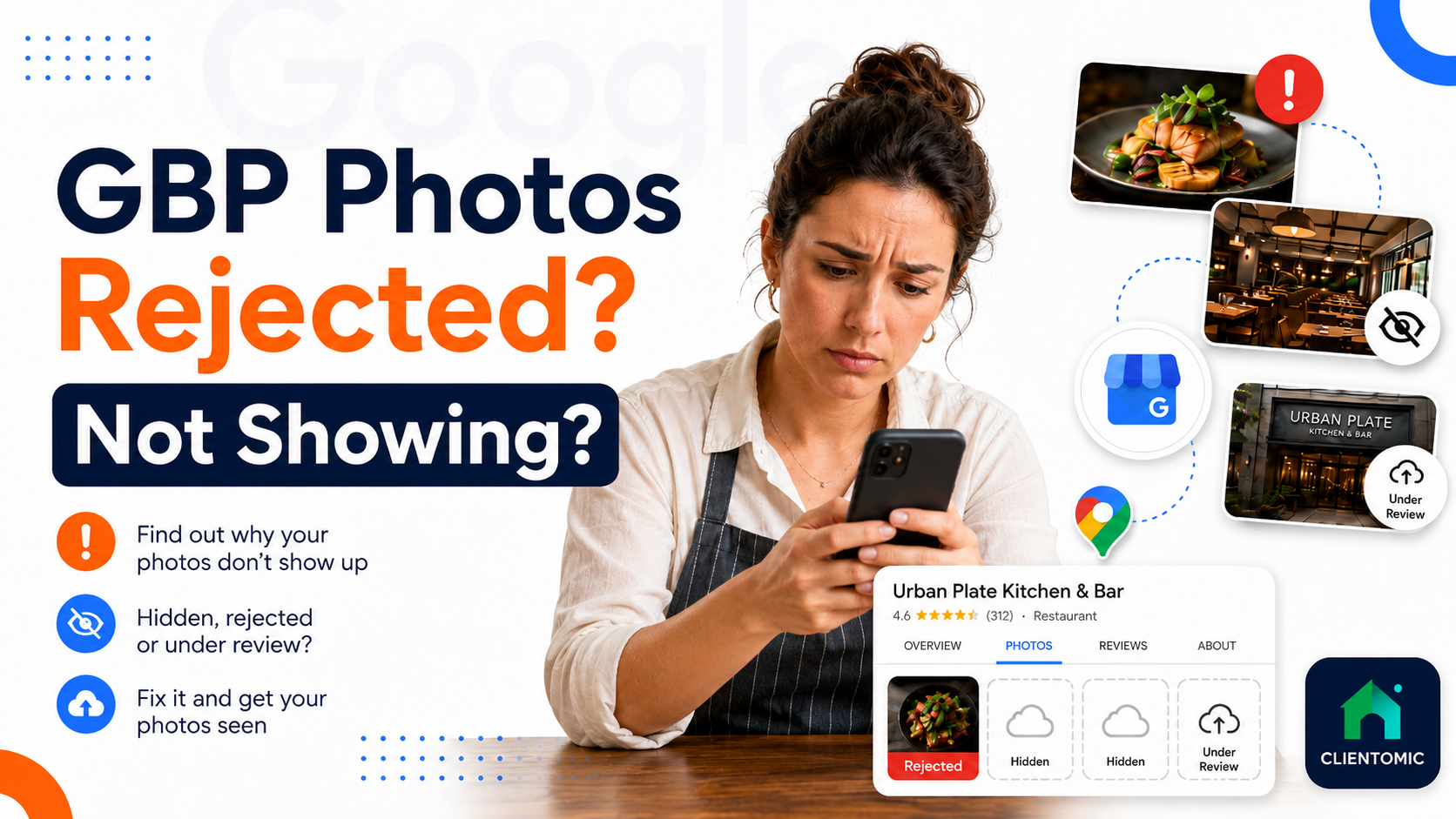
The answer depends on the status Google shows. Pending means the media is still being processed and is not visible to customers. Not approved means Google flagged the media, so it does not appear on Search or Maps. Live means the photo is visible, although Google may show another image first. A photo can also be absent because the Business Profile is not verified or because Google restricted the profile, account, or media. Do not replace the file until you identify the branch that applies. Google says photos may take up to 24–48 hours to appear, but that window is a processing guideline, not a publication promise (Google Business Profile Help, 2026).[1] The safe response is status-first: wait for processing, correct a documented problem, check the profile, or use Google support.
Use this quick triage before you upload anything again:
| What you see | What it indicates | Can customers see it? | Next safe action |
|---|---|---|---|
| Pending | Google is still processing the media | No | Wait through the stated display window, then check again |
| Not approved | Google flagged the media | No | Check the file, policy fit, duplicates, and profile restrictions |
| Live | The media appears on Search and Maps | Yes | Check whether the issue is position rather than visibility |
| No media status | Verification or another profile condition may be involved | Not necessarily | Confirm verification and read any restriction notice |
The decision tree is simple:
This order matters. Repeatedly uploading the same file can make the history harder to follow without resolving the underlying condition.
Pending, Not approved, and Live describe three different media outcomes. Pending media is still uploading or processing and does not show to customers. Not approved media has been flagged because it does not meet Google's requirements or policies, so it also remains hidden. Live media appears on Google Search and Google Maps. Google says a newly uploaded photo can take up to 24–48 hours to show, so a recent Pending label does not by itself establish rejection (Google Business Profile Help, 2026).[1] A Google Business Profile photo marked Not approved is a moderation status, not a display glitch: Google says the media was flagged and does not show on Search or Maps. A Live label confirms visibility, not position. Read the label literally before choosing your next action.
| Status | What Google's label means | Customer visibility | Appropriate response |
|---|---|---|---|
| Pending | Uploading or processing | Hidden | Wait, then recheck |
| Not approved | Flagged during review | Hidden | Review requirements, policy, and restrictions |
| Live | Published on Search and Maps | Visible | Check placement if the expected image is not first |
Owners often use "rejected" for any photo they cannot find. Google's labels are more useful because they separate processing, moderation, and display. Google Business Profile photos can take up to 24–48 hours to show after upload; Google Business Profile Help also says Pending media is hidden from customers while Live media appears on Search and Maps (Google Business Profile Help, 2026).[1]
Verification is a separate check. Google says photos and videos appear only after a Business Profile is verified.[1] A valid image on an unverified profile can therefore look like a media failure even when the file itself is not the problem.
Before uploading again, confirm that the profile is verified, read the current media status, and check the file against Google's documented requirements. Google accepts JPG or PNG files from 10 KB to 5 MB. The minimum resolution is 250 × 250 pixels, while 720 × 720 pixels is recommended (Google Business Profile Help, 2026).[1] The image should be focused, well lit, and representative of the real business without significant alterations or excessive filters.[2] It must also comply with Google's photo and content policies.[3] Check whether the same image was already uploaded and whether the profile or account has a restriction.[4] Passing file checks does not override moderation. The goal of this checklist is to remove documented problems and preserve a clean record, not to force Google to approve or display the image.
Work through these checks in order:
A file can meet every size and format requirement and still be restricted under a content policy. Conversely, an image can be compliant but remain absent while the profile is unverified or the media is still processing. That is why the status and profile checks come before another upload.
A cover photo selection is not a promise of first position. Google Business Profile Help says that choosing a cover photo does not guarantee it will appear as the first image for the business.[1] A photo can be Live and visible in the media gallery while Google displays another owner-uploaded or customer-added image more prominently. That means visibility and position are separate questions. First confirm that the selected image is Live. Then view the public profile on Google Search and Google Maps to see whether the photo appears elsewhere in the gallery. Do not assume that a replacement upload will force the selected cover image to the top. A live photo is not necessarily the first image customers see because Google does not guarantee the selected cover photo's position.
The distinction prevents unnecessary rework:
Check the public listing rather than relying only on the management screen. If the image is Live and appears in the gallery, the upload succeeded even when another photo leads the profile. Google's documentation does not provide a method for forcing a particular image into the first position, so avoid advice based on hidden thresholds or repeated replacement uploads.
Accurate photos still matter as part of broader profile clarity. The practical boundary is clear: maintain representative media, but do not treat cover placement as a controllable outcome. For a broader upkeep checklist, see this Google Business Profile optimization guide.
After 24–48 hours, recheck the exact media status, confirm profile verification, and avoid repeated identical uploads. Save the original file and the notice shown in the profile. If Google identifies restricted media, use the route documented for your region: the appeals tool is available for restricted media in the UK and European Economic Area, while owners outside those regions should use Google's Contact Us flow. Google says appeal reviews and decisions can take up to 5 business days, and optional evidence must be submitted within 60 minutes after the evidence form opens (Google Business Profile Help, 2026).[5] These are process windows, not promised outcomes. If the notice concerns a suspended or disabled profile or account rather than one image, address that restriction first. Do not create another Business Profile to work around the notice, and do not submit duplicate appeals while a decision is pending.
Before contacting Google, collect the profile URL, the exact media status, the original image, and the wording of any notice. Add only evidence the support or appeal flow requests. This gives Google a clear record without inventing requirements that do not appear in its instructions.
Use the route that matches the notice and location:
| Situation | Next route |
|---|---|
| Restricted media in the UK or EEA | Google Business Profile appeals tool |
| Restricted media outside the UK or EEA | Google Business Profile Contact Us flow |
| Profile or account restriction | Resolve the broader restriction before treating it as a photo-only issue |
This is also where recurring upkeep can become a workload problem. Managed Local Visibility is the ongoing handling of a business's presence across Google Search, Google Maps, and related discovery surfaces. Clientomic is a done-for-you local visibility service that manages Google Business Profiles for small businesses, handling the recurring maintenance so owners get found without having to track every status change themselves. It can reduce the time spent checking profile details and media, but it cannot represent a business in an appeal, control Google's moderation, promise publication, or determine cover placement. Across the profiles we manage at Clientomic, this status-first triage is consistently what separates a quick fix from a wasted upload.
For context on the maintenance work around photos, review why regular Google Business Profile updates matter and what improves Google Business Profile performance. When you want the recurring profile work handled after the factual support steps are clear, reach out and we'll walk through it with you.
Provide the Business Profile URL, the exact media status or restriction notice, the original file, and any relevant policy context. Keep the information tied to the issue shown in Google's flow. If the appeal form offers an evidence step, follow its instructions and submit the requested material within the stated time window.[5]
Open the public Business Profile on Google Search and Google Maps, then compare the first image with the owner-uploaded and customer-added media in the gallery. A Live owner photo can remain visible without appearing first. The management screen confirms status; the public profile shows what customers currently see.
Technical compliance does not override content policy or a profile restriction. Read the exact notice, review Google's media and content rules, and check whether the profile or account has a broader restriction.[3][4] If the media remains restricted, use the support or appeal route that Google provides for your region.
For restricted media, Google directs businesses in the UK and European Economic Area to its appeals tool. Businesses outside those regions should use the Google Business Profile Contact Us flow.[5] Follow the route shown for the affected profile, and do not assume that submitting a request will change the decision.
No. The cover photo is the image an owner selects for that role, but Google does not guarantee it will appear first.[1] A different owner-uploaded or customer-added image may lead the public profile. Check whether your chosen photo is Live before treating the issue as failed publication.
The same status, verification, file, and media-policy checks still apply. The photo should represent the real business and services without misleading viewers about a location customers cannot visit.[2][3] Keep this diagnosis focused on the media notice; service-area profile setup is a separate configuration question.
Getting rejected or missing photos resolved comes down to reading the exact status Google gives you and matching it to the right next step, rather than guessing and re-uploading.
Sources:
1. Google Business Profile Help, photo and video management, status definitions, file requirements, verification, display timing, and cover-photo behavior, accessed 2026. Review the guidance
2. Google Business Profile Help, business-specific photo quality and representation guidance, accessed 2026. Review the photo tips
3. Google Business Profile Help, photos, videos, and posts content-policy requirements, accessed 2026. Review the media policy
4. Google Business Profile Help, profile and account conditions related to rejected content, accessed 2026. Review the policy overview
5. Google Business Profile Help, appeal routes, review timing, and optional evidence timing for restricted content, accessed 2026. Review the appeal process